Starting with Macros in Excel
We will start with a new section on the site, it is an Excel from the point of view of macro creation, a tool more than necessary today. It is not at all complicated to learn the basics of macros, but you can get to create quite complicated macros, so I think it is necessary to start with the basics until you get to the most complex and well, that is the idea of this section of the site called “Macros in Excel“.nnFirst we need nothing to have the Programmer Mode enabled in Excel, as you can see in the image below:nn nnnActivate it is quite simple, you just have to go to the Excel options, in File>>Options as you can see below:nn
 Once there we go where it says Customize Options tape, and activate the option that says “Programmer“, the image you can see below:nnnnnnnnnn
 With this we will already have the programmer mode activated, so we can start with our first macro in excel, Once in the Programmer tab, we select where it says “Visual Basic“nn
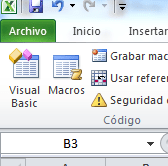 nnn Once there, we will see a screen like the one shown below:nn
 nnnnNow what we will do will be the creation of a module, for this we make use of the right click where it says VBAProject (Book1), we will Insert>>Module, as you can see below:
 Once this is done, a window will open and we will write the following:
Sub MiPrimerMacro()nMsgBox "Hola Munda"nEnd Sub
No, no, no, no, no, no, no, no, no, no, no, no, no, no, no, no, no, no, no, no, no, no, no, no, no, no, no, no, no, no, no, no, no, no, no, no, no, no, no, no, no, no, no, no, no, no, no, no, no, no, no, no, no, no, no, no, no, no, no, no, no, no, no, no, no, no, no, no, no, no, no, no, no, no, no, no, no, no, no, no, no, no, no, no, no, no, no, no, no, no. no, no, no, no, no, no, no, no, no, no, no, no, no, no, no, no, no, no, no, no, no, no, no, no, no, no, no, no, no, no, no, no, no, no, no, no, no, no, no, no, no, no, no, no, no, no, no, no, no, no, no, no, no, no, no, no, no, no, no, no, no, no, no, no, no, no, no, no, no, no, no, no, no, no, no, no, no, no, no, no, no, no, no, no, no, no, no, no, no, no, no, no, no, no, no, no, no, no, no, no, no, no, no, no, no, no, no, no, no, no, no, no, no, no, no, no, no, no, no, no, no, no, no, no, no, no, no, no, no, no, no, no, no, no, no, no, no, no, no, no, no, no, no, no, no, no, no, no, no, no, no, no, no, no, no, no, no, no, no, no, no, no, no, no, no, nnnnOnce written, we should see something like what is shown at the top. Now if we hit the play button we will run our little code. You should get this message:nn
 nnnnThe first concept to explain is “Sub” which corresponds to a subroutine, i.e. it enters
Sub NombreDADO()n.n.n.nEnd Sub
nIt will be all our code, Sub NameDAD() indicates where it starts and End Sub indicates where our macro ends for excel. This is because if we need to have multiple codes, we can run them separately or call them only when we need them. Let’s make it clear that the NameDAD parameter is a name that one gives to the subroutine.nnnContinue with the MsgBox function, simply what it does is show a window with the text that we indicate to you. That is to say that everything in the parentheses will be shown.nnnMsgBox “Hello World” will show “Hello World”nnnnn Now if we want this message to appear when we press a button how do it? Well it is quite simple, for this we will go to the menu and insert a button, as shown below:nnn nnnnAfter that a message will appear where you can insert the macro to the button, you should see something like this:nn
 We give him to accept and we should see something like this:
 nnn Now when you click on the button, you should see the message you saw earlier.nn
 nnnnSo we can say that you have already created your first macro in excel, I hope this little tutorial has been helpful and you could complete it without major problems, anyway you can leave any queries in the comments. If there were any errors I would appreciate that they said it too, since that is a blog, right?