¿Qué es la infiltración?
La infiltración es el proceso mediante el cual el agua de la superficie penetra en el suelo, moviéndose por gravedad y fuerzas capilares a través de sus poros y fracturas. Es uno de los procesos clave del ciclo hidrológico: determina qué fracción de la lluvia se convierte en escorrentía (con todo lo que eso implica para crecidas e inundaciones) y qué fracción recarga los acuíferos subterráneos.
Factores que controlan la infiltración
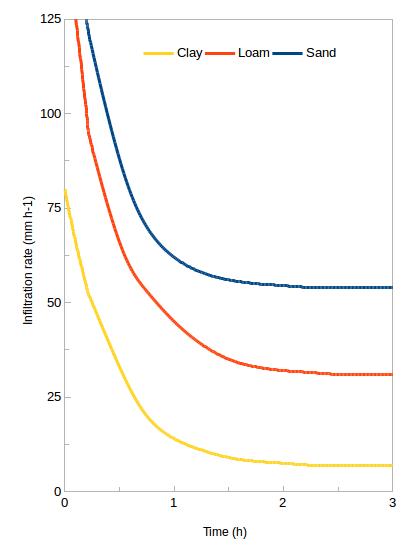
- Textura del suelo: los suelos arenosos (poros grandes) tienen alta infiltración; los arcillosos, muy baja. Ejemplo: una arena limpia puede infiltrar más de 25 mm/h; una arcilla compacta, menos de 1 mm/h.
- Estructura y macroporos: grietas, galerías de lombrices, canales de raíces y agregados del suelo aumentan significativamente la infiltración real.
- Cobertura vegetal: la vegetación protege la superficie del sellado por impacto de gotas (costra superficial), mantiene la estructura del suelo y favorece la actividad biológica.
- Contenido inicial de humedad: un suelo seco infiltra más rápido al inicio (gradiente capilar alto); un suelo ya saturado no puede infiltrar más.
- Compactación: el tráfico de maquinaria, el pisoteo intenso o la lluvia misma puede sellar la superficie y reducir drásticamente la infiltración.
Modelos de infiltración
- Modelo de Horton (1940): la tasa de infiltración decrece exponencialmente desde un máximo f₀ hasta una tasa constante fₒ: f(t) = fₒ + (f₀ − fₒ)·e^(−kt). Es empírico, sencillo y ampliamente usado.
- Modelo de Green-Ampt (1911): enfoque físico basado en el avance del frente de humectación. Más preciso y ampliamente implementado en software como HEC-HMS.
- Índice φ (phi): método simplificado que asume una tasa de infiltración constante, ajustada para reproducir el volumen de escorrentía observado. Útil para análisis rápidos.
Fuentes
- Horton, R.E. (1940). An approach toward a physical interpretation of infiltration-capacity. Soil Science Society of America Proceedings, 5, 399–417.
- Green, W.H. & Ampt, G.A. (1911). Studies on soil physics: Part I. The flow of air and water through soils. Journal of Agricultural Science, 4(1), 1–24.
- Rawls, W.J., Brakensiek, D.L. & Miller, N. (1983). Green-Ampt infiltration parameters from soils data. Journal of Hydraulic Engineering, 109(1), 62–70.